
Quick start
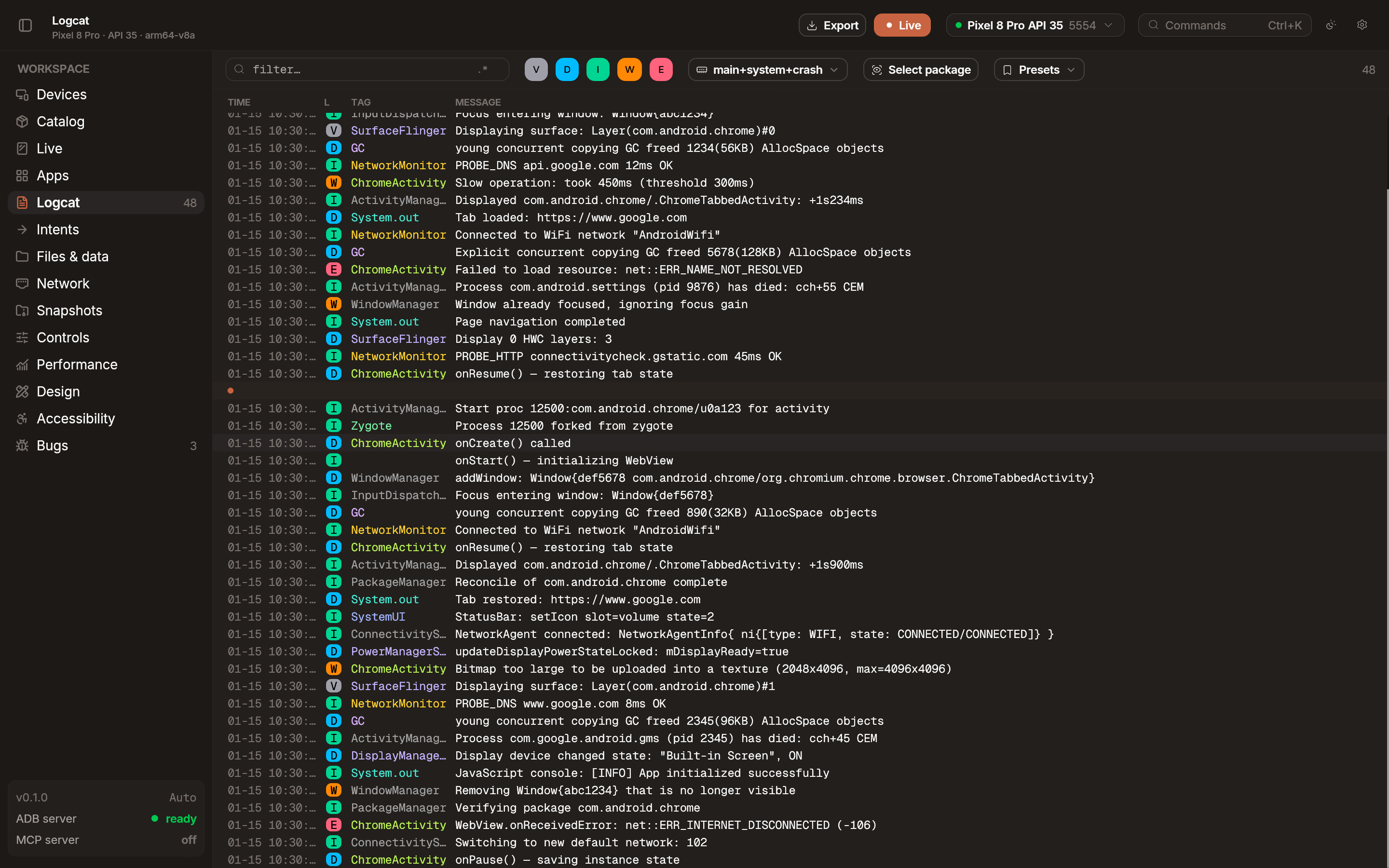
Section titled “Quick start”- Open the Logcat tab in the workspace.
- Select your app package from the dropdown menu.
- Logs will begin streaming, automatically filtered to your process.
PID following
Section titled “PID following”Emu tracks your application’s Process ID (PID) in real time. If your app restarts or crashes, Emu automatically detects the new PID and re-attaches the log stream without losing context or requiring manual intervention.
Crash detection
Section titled “Crash detection”When an application crash occurs (FATAL EXCEPTION), Emu captures the stack trace and flags it. Crashes are also surfaced in bug replay reports when capture is active.
Filtering
Section titled “Filtering”Narrow down logs using powerful built-in filters.
- Priority level: Filter by Verbose, Debug, Info, Warning, Error, or Fatal.
- Tag: Show only logs with specific tags.
- Regex search: Use regular expressions to find complex patterns in log messages.
- Package name: Isolate logs from a specific application package.
Presets
Section titled “Presets”Save your current filter configuration as a named preset to switch contexts quickly. A preset captures the priority level, search query, regex mode, suppressed tags, and followed package — everything that defines what you’re looking at.
Use presets to jump between debugging scenarios without reconfiguring filters each time. For example, keep a “Network” preset filtered to OkHttp tags and a “UI” preset following your app package at Warning level.
Disk-backed history
Section titled “Disk-backed history”Logs are written to disk in compressed segments so they persist across mirror reconnects, app restarts, and Emu restarts. You do not lose log history when switching devices or closing the app.
Row selection
Section titled “Row selection”Interact with log entries using standard shortcuts.
- Select: Click a row to select it.
- Copy: Press
Ctrl+C(orCmd+C) to copy the selected rows to your clipboard.