Quick start
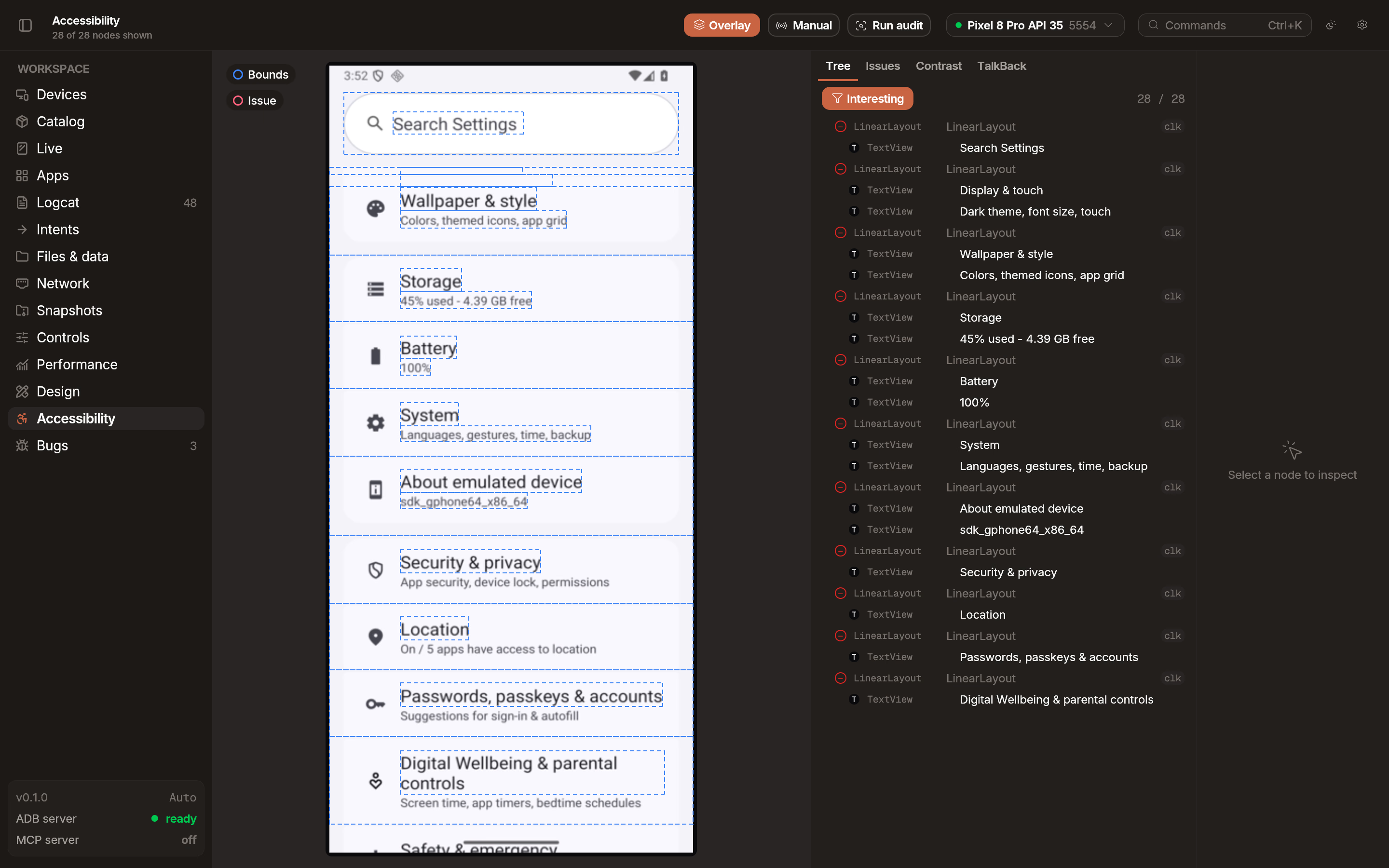
Section titled “Quick start”- Open the Accessibility tab in the workspace.
- Click Run Audit.
- Review the report for issues and recommendations.
What’s checked
Section titled “What’s checked”Emu runs a set of detectors against the accessibility tree and the device screen. Examples of what gets flagged:
- Text contrast: Pixel-level analysis of foreground/background contrast ratios, tested against WCAG A, AA, and AAA thresholds.
- Touch targets: Elements that are too small to tap reliably.
- Missing content descriptions: Images and interactive elements without labels for screen readers.
- Redundant descriptions: Labels that duplicate the visible text and add noise for assistive technology users.
- Clickable but not focusable: Interactive elements unreachable via keyboard or switch access.
- Duplicate speakable text: Multiple elements in the same region announcing the same text.
- Spacing: Interactive elements placed too close together, increasing the risk of accidental taps.
- Nested focus: Focusable elements inside other focusable elements, which confuses navigation order.
Bidirectional highlighting
Section titled “Bidirectional highlighting”- From report: Click an issue in the audit report to highlight the corresponding element on the device.
- From device: Click an element on the device to jump to the relevant issue in the report.
Live inspection
Section titled “Live inspection”Emu maintains a persistent on-device accessibility server for real-time element inspection. As you navigate your app, accessibility properties of the focused element update in the inspector panel.
The mirror in the Accessibility tab is not interactive — it shows the overlay but does not forward touch input. Use the Pop Out button to open a floating mirror window alongside the audit view. Interact with your app in the popout while watching the accessibility properties update in real time.
Inspection tiers
Section titled “Inspection tiers”Emu supports three tiers for retrieving the accessibility tree, selectable in Settings > Accessibility.
- Tier 1 (app_process): Runs an accessibility service directly on the device via
app_process. No additional installation required. - Tier 2 (companion): Uses a companion app on the device for deeper inspection of custom views and complex layouts.
- Tier 3 (shell): Fallback that retrieves the accessibility tree via ADB shell commands. Less detailed but works on any device.
Emu defaults to auto-selecting the best available tier for the connected device.