
Quick start
Section titled “Quick start”- Connect an Android emulator.
- Open the Controls tab in the workspace.
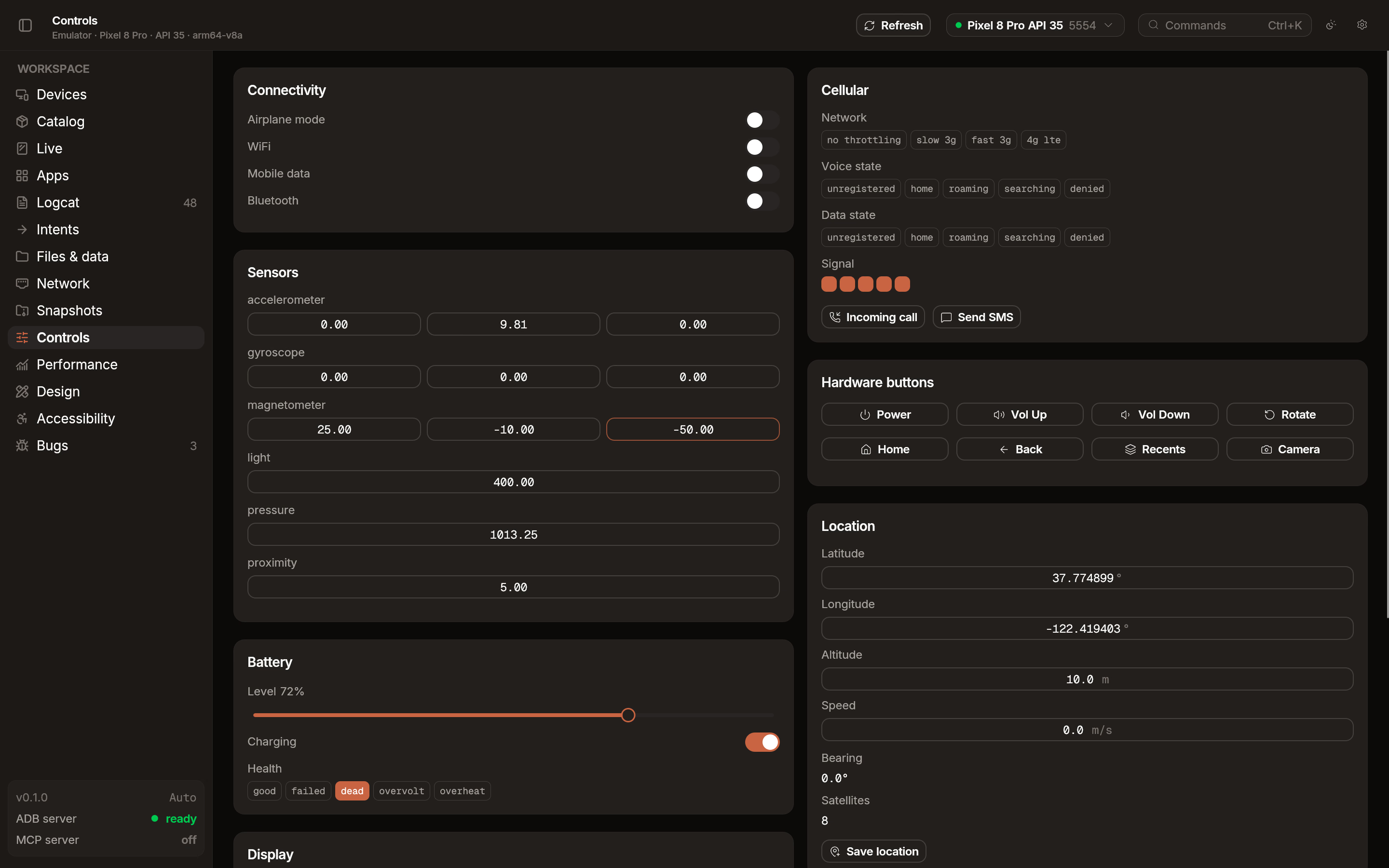
- Adjust settings in the responsive grid of control cards.
Location
Section titled “Location”Simulate device movement and position without leaving your desk.
- Coordinates: Set latitude, longitude, and altitude.
- Movement: Configure speed and bearing for navigation testing.
- Presets: Choose from a list of built-in locations or save your current coordinates as a new preset.
Battery
Section titled “Battery”Test how your app behaves under different power conditions.
- Level: Adjust the battery percentage slider.
- Status: Toggle between charging, discharging, full, and not charging.
- Health: Simulate battery health states like Good, Overheated, or Dead.
- Battery saver: Toggle the system battery saver mode. Android emulators do not automatically enable battery saver when the level drops low, unlike real devices. Emu lets you trigger it manually so you can test how your app adapts to battery saver restrictions (background limits, reduced animations, network throttling).
Network
Section titled “Network”Apply network throttling to test app performance on slow connections.
- Profiles: Choose from standard profiles like 2G, 3G, or LTE.
- Custom: Set specific bandwidth limits and latency delays.
- Airplane mode: Toggle all cellular and wireless radios.
Sensors
Section titled “Sensors”Manipulate 7 different hardware sensors to test motion and environment-aware features.
- Motion: Accelerometer and Gyroscope.
- Environment: Light, Pressure, and Temperature.
- Position: Magnetometer and Proximity.
Foldable
Section titled “Foldable”Control the physical posture of foldable devices.
- Posture: Switch between Open, Half-open, and Closed states.
- Hinge angle: Use the slider to set a specific hinge angle for fine-grained UI testing.
Snapshots
Section titled “Snapshots”Save and restore the exact state of your emulator.
- Save: Capture the current disk and memory state with a custom name.
- Load: Restore a previously saved snapshot to return to a known state instantly.
- Delete: Remove old snapshots to free up disk space.
Wear OS
Section titled “Wear OS”When a Wear OS emulator is connected, the Controls tab shows watch-specific controls.
- Wrist tilt: Toggle between gaze (screen on) and ungaze (ambient mode) to test always-on display behavior.
- Heart rate: Set a simulated heart rate with a slider (40–200 bpm) or use presets — Rest, Active, Cardio, Max.
- Ambient light: Adjust RGBC ambient light sensor values to test watch face brightness adaptation.
The mirror view also renders round watch faces correctly with a circular mask.
Advanced features
Section titled “Advanced features”Edit advancedFeatures.ini flags directly from the settings panel to enable experimental emulator capabilities without manually editing configuration files.