Quick start
Section titled “Quick start”- Open the Design tab in the workspace.
- Drag a PNG export from Figma, Sketch, or your file manager onto the tab.
- The design overlay appears on the device mirror.
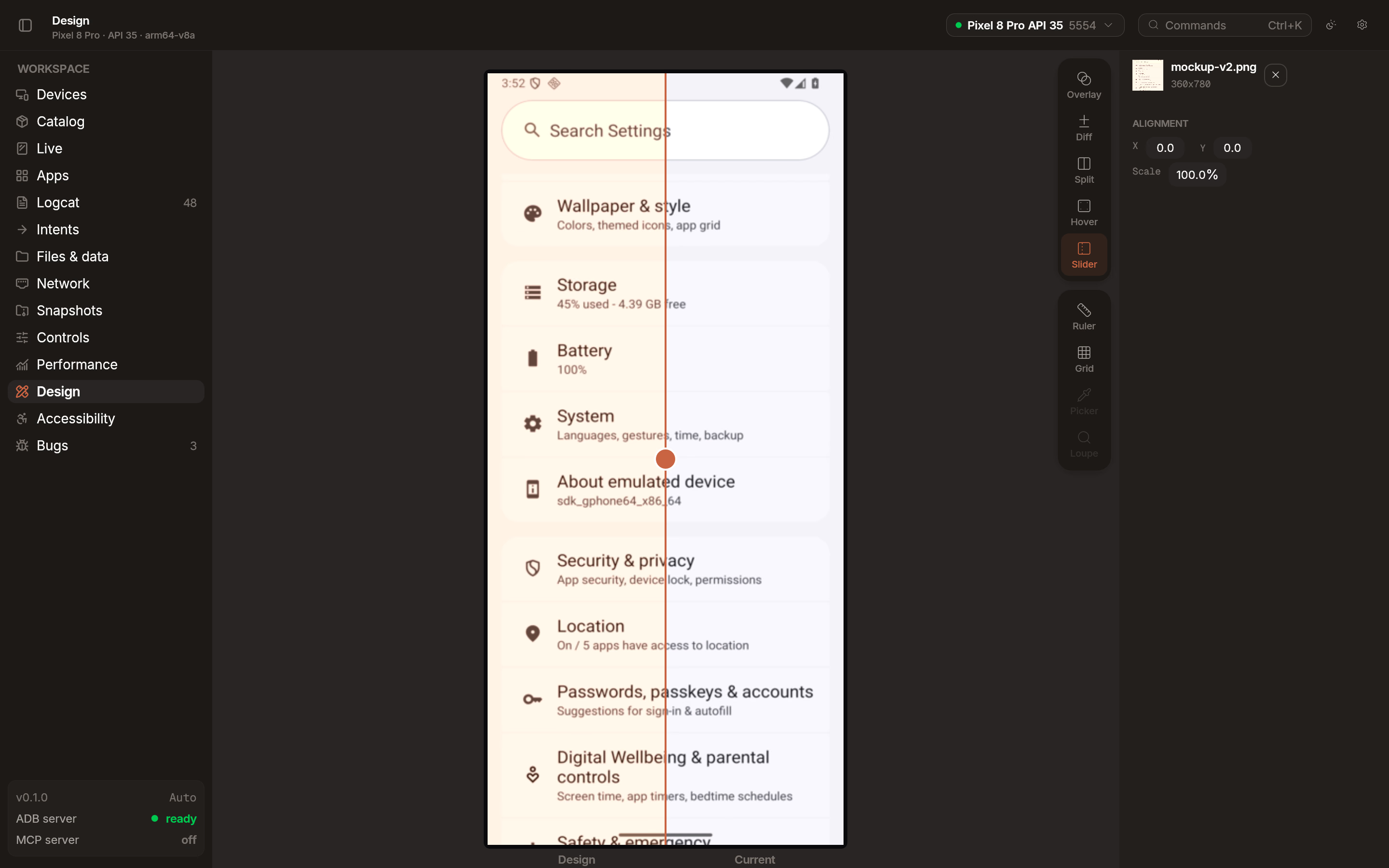
5 compare modes
Section titled “5 compare modes”Choose the best way to visualize differences between the design and the live app.
- Overlay: Render the design with adjustable transparency over the live screen.
- Diff: Highlight only the pixels that differ between design and implementation.
- Side by side: Show the design and live app next to each other with a vertical divider.
- Slider: Drag a divider across the screen to reveal the design underneath.
- Hover: Switch between design and live app on mouse hover to spot differences.
Measurement tools
Section titled “Measurement tools”Use built-in tools to quantify deviations.
- Pixel ruler: Measure distances between elements in pixels.
- Dimension lines: Draw lines to check alignment and spacing against the design.
Grid overlay
Section titled “Grid overlay”Enable a configurable grid to check alignment across the entire screen. You can adjust the grid size and color in the design settings panel.
Color picker
Section titled “Color picker”Pick colors directly from the device screen to verify implementation accuracy. Emu keeps a history of picked colors in a swatch grid.